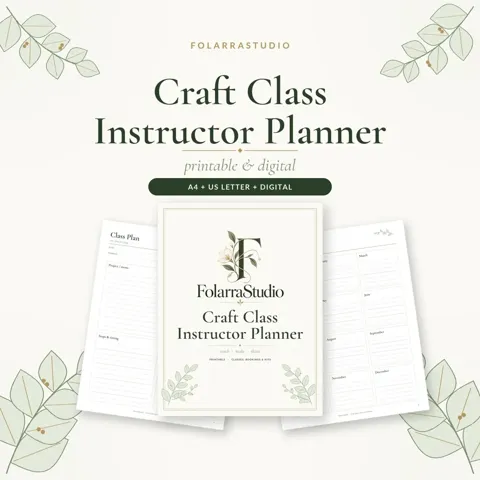
Download the free Craft Class Instructor Planner
12 pages · choose the format you need
US or Canada → US Letter · Everywhere else → A4 · Tablet → Digital
If the PDF opens in your browser, use the download or share icon in the viewer to save it.
Add your name to the cover optional
We write your name in our Cormorant script on the cover, right here in your browser. Nothing is uploaded, and the plain downloads above stay one click.

Get the free FolarraStudio app
Add FolarraStudio to your phone, tablet or computer. It opens full screen from your home screen in one tap, with your favorite planners saved, so the next planner is always close. Free, no app store and no sign-up.
To install, open this page in Chrome, Edge or Samsung Internet and choose Install app or Add to Home screen from the browser menu. On iPhone or iPad, use Safari: tap Share, then Add to Home Screen.
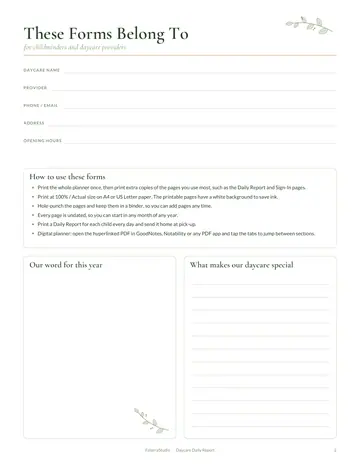
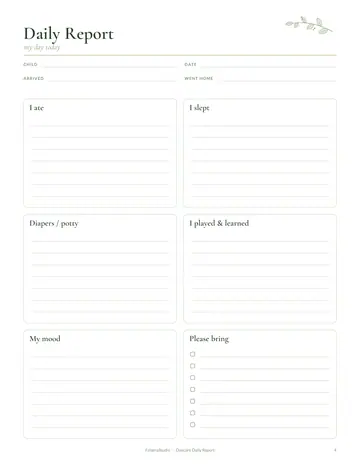
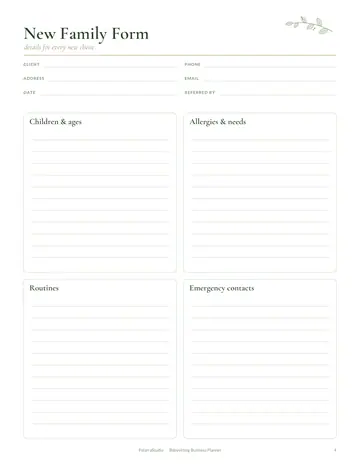
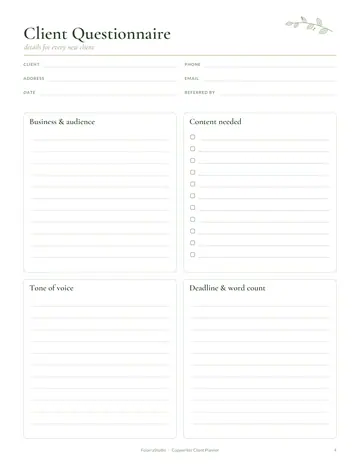
A look inside
-
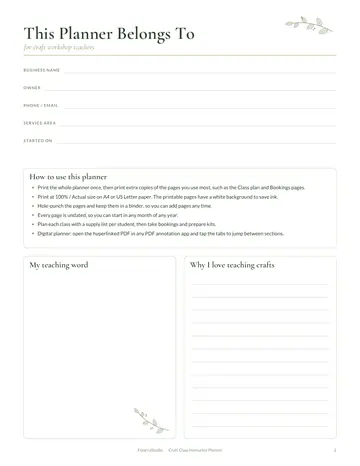 This Planner Belongs To
-
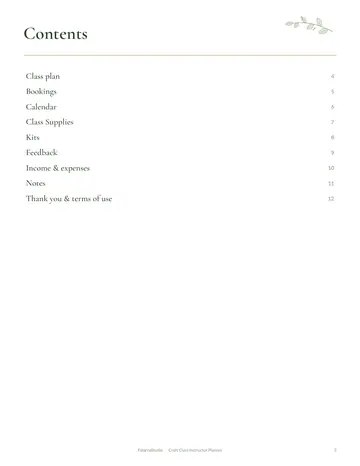 Contents
-
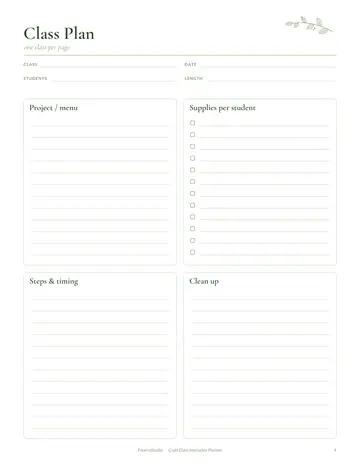 Class Plan
-
 Class Bookings
-
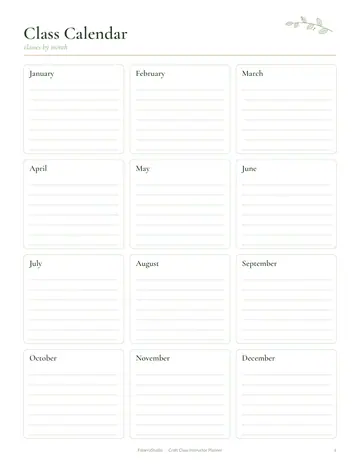 Class Calendar
-
 Class Supplies
What's inside
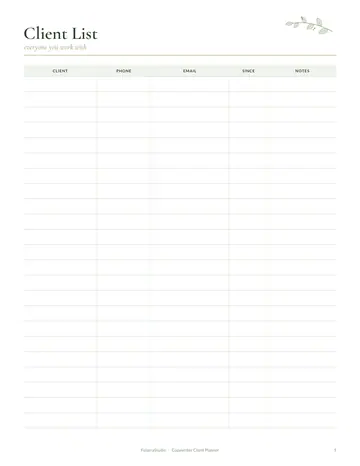
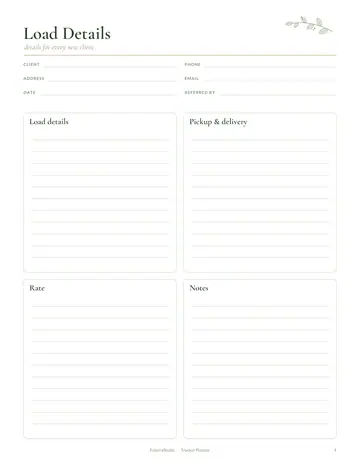
- Class Plan
- Class Bookings
- Class Calendar
- Class Supplies
- Kit Prep
- Student Feedback
- Income & Expenses
- Notes
Getting started
Write each class plan with steps, timing and skill level. Record bookings with names and payments. Mark classes on the calendar.
Printing tips
- Print at 100% or "Actual size" so nothing gets cut off.
- Choose A4 in Europe, Asia and Australia, and US Letter in the US and Canada.
- Slightly heavier paper (100–120 gsm or 28–32 lb) feels lovely and stops ink showing through.
- Print only the pages you need, and reprint your favorites as often as you like.
- Save the PDF in a folder on your computer, so a fresh copy is always ready for next month.
- For the digital PDF, open it in your favorite PDF annotation app and tap the tabs to jump between sections.
Questions
Which file should I download?
Choose A4 if your printer paper is A4 (most of the world) and US Letter if you are in the US or Canada. Choose the digital PDF to write on a tablet with clickable tabs.
The PDF opened in my browser. How do I save it?
Use the download or share icon in your browser's PDF viewer to save the file to your device, then print it or open it in your favorite app.
Can I put my own name on the cover?
Yes. Type your name in the Add your name to the cover box above and press Download with my name. It is written right in your browser and nothing is uploaded.